User manual
Roles
The Certhelper distinguishes between 3 different Roles
Shifter
Shift Leader
Admins
Each role has their set of rights which are explained in the following chapters.
Login
The first thing a user has to do in order to be able to modify data is to login. The recommended way of logging is using CERN Single sign-on by clicking on the “Login with CERN” button.
If the user wants to log in with a local account that is only used by the Certhelper website instead, he can do so by clicking “Use local account instead”, entering the credentials and clicking on “Sign in”.
Privileges from e-groups
Logging in with CERN updates the user privileges automatically, such that shift leaders are detected by the e-groups the user is a member of. The Shift Leader e-group is automatically assigned and does not have to be updated manually.
Shifters must be subscribed to any of the following e-groups:
cms-dqm-runregistry-offline-tracker-certifierscms-shiftlist_shifters_dqm_p5tkdqmdoctor-shifterscms-shiftlist_shifters_dqm_offline
Shift Leaders must be subscribed to any of the following e-groups:
cms-tracker-offline-shiftleadertkdqmdoctor-shiftleaders
Experts must be subscribed to:
cms-dqm-certification-experts
Shifter
Certification
Adding a new run certification can be done by clicking the accessing the Certification tile button on the main page.

This will open the certification page which contains the first step of the certification process
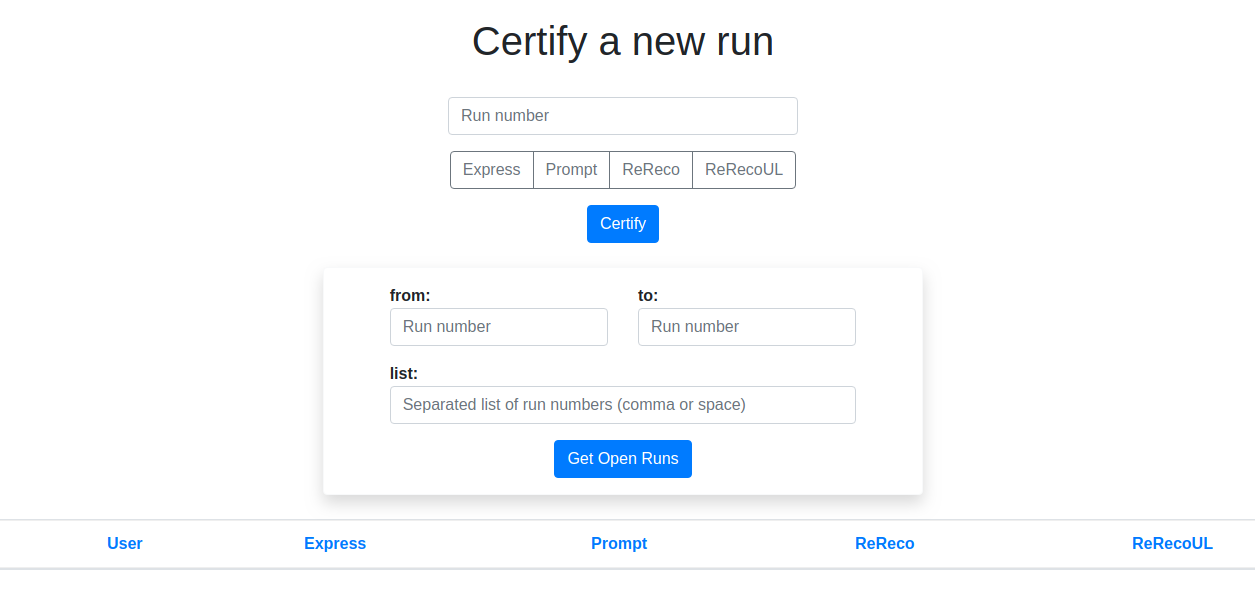
The purpose of this page is to receive the runs data based on the number and type of run. There are currently two ways to do that:
Certify Button: Once you add the run number and the type after which you press the Certify button and go to the certification form page.
Get Open Runs: This will return the requested run reconstructions, either by using a list of run numbers or a range of run numbers. This is meant to work in such a way that each shifter will get their open runs at the beginning of the week and go through them one by one afterwards.

Yellow run type button means run not yet certified
Green run type button means run is certified. If the button is disabled,
Going to the next certification step is done either by pressing the Certify button or one of the run reconstruction type buttons from the Open Runs table.

The form consists of the following elements:
Run number
Type
Type path
Date: The date of the certification
Type Section: Automatically retrieved information about the type of the run
Lumi Section: Automatically retrieved information about the lumi of the run
Fill Section: Automatically retrieved information about the fill of the run
Reference Run: Which Reference Run was used to certify this run?
Checklists: These need to be covered by the shifter in order to make sure all the steps have been covered in the run certification
Pixel: Status of the Pixel Component (good/ bad/ excluded/ low statistics)
Strip: Status of the SiStrip Component
Tracking: Status of the Tracking?
Trackermap: Does the Trackermap exist or is it missing?
Problem section: Here are added all the problems that the run might have
Comment: Extra comments that are worth to mention
Since most of the information is filled automatically the shifter only has a few fields to fill.
Assuming the are no problems with the run the shifter has to fill the Reference Run field, the Tracker Maps filed and the state of the run, in this example good, good and good. Then the only thing left to do is to tick all the checklists and submit.
The Submit won’t let you complete the action if the form is not filled correctly.
Checklists
The “Checklists” have to be checked to be able to submit a new run certification. The checklists consist of instructions which have to be performed in order to certify the data correctly. It also includes links with easy access to external tools that should be used during the data certification process.
A certified run cannot be submitted unless every checkbox is read and checked. This ensures that no shortcuts are taken and to improve the quality of certifications.
Once a run is created with the “Submit” button at the bottom of the form, the run will appear in the list of Certified runs. If the shifter wants to edit a certified run, he can do so by clicking on the “Edit” button in the list of certified runs.
List Runs
Seeing the certified runs can be done by clicking the List Runs tile button on the main page.
Here the shiftleader or shifter could see all the certified runs he/she has certified.

This page contains a table with all the certified runs that defaults for those certified in the current day and a filter where you can choose different day ranges, run numbers ranges and many more for precisely listing the desired runs.
Daily Shift Report
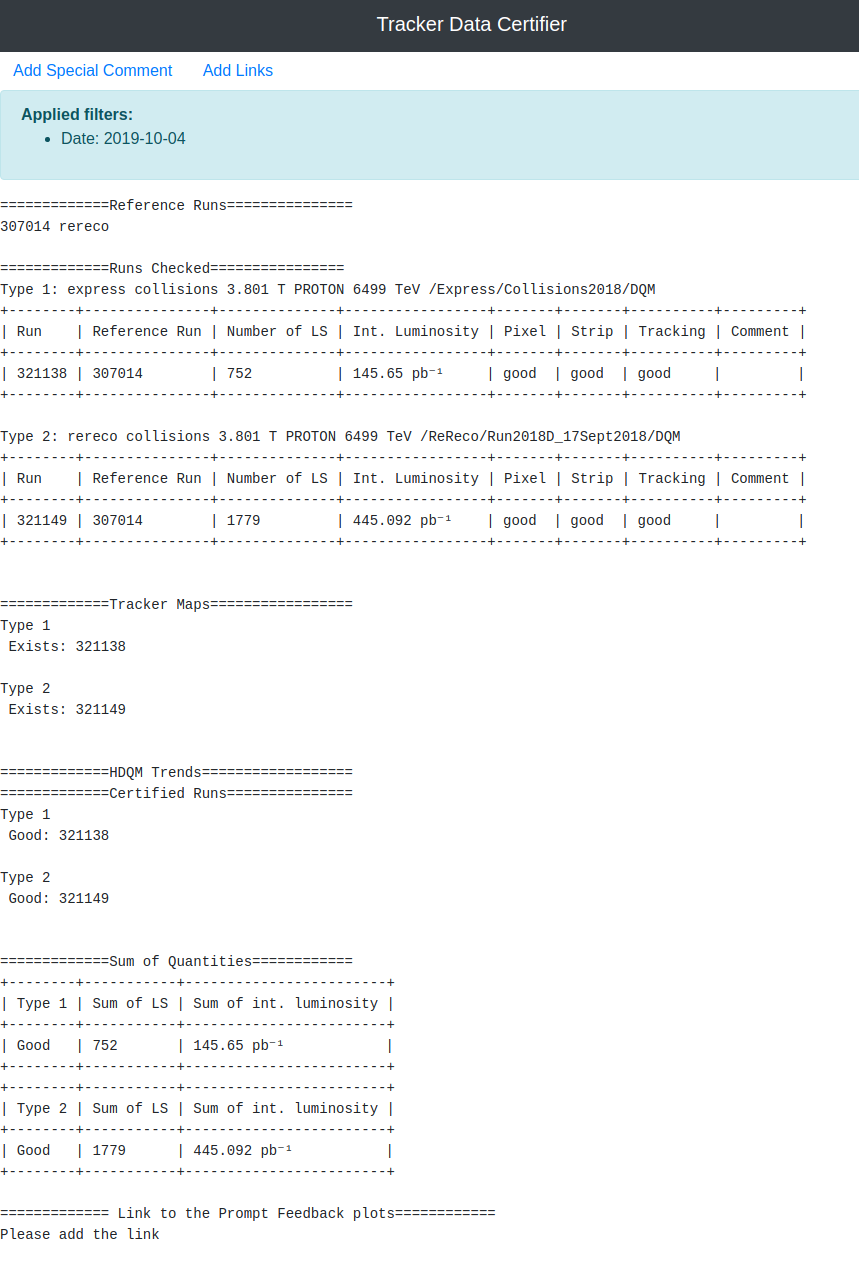
Clicking the Daily Shift Report tile button take you to the shifter report.
Once pressed, a daily shift report is generated automatically and can be used by the shifter.
Remote Scripts
By using the Remote Scripts tile button you can access the page where you can generate tracker maps.
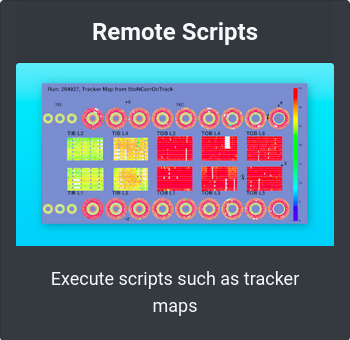
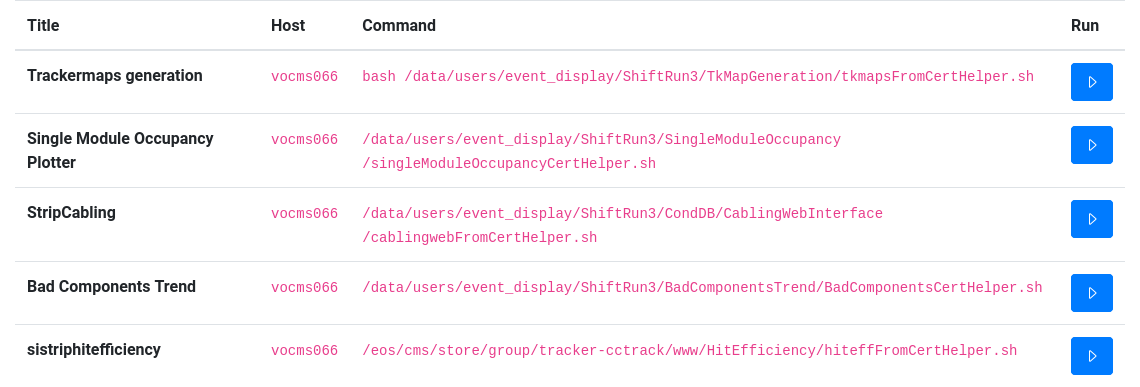
From this page, a Shifter or Shift Leader can select to run scripts (such as Tracker Maps generation) which can retrieve extre information which can help during certification.
A list of currently available scripts can be seen below:
Note
If multiple users try to use the same script at the same time, they will all be updated with execution logs of the running scripts at the same time.
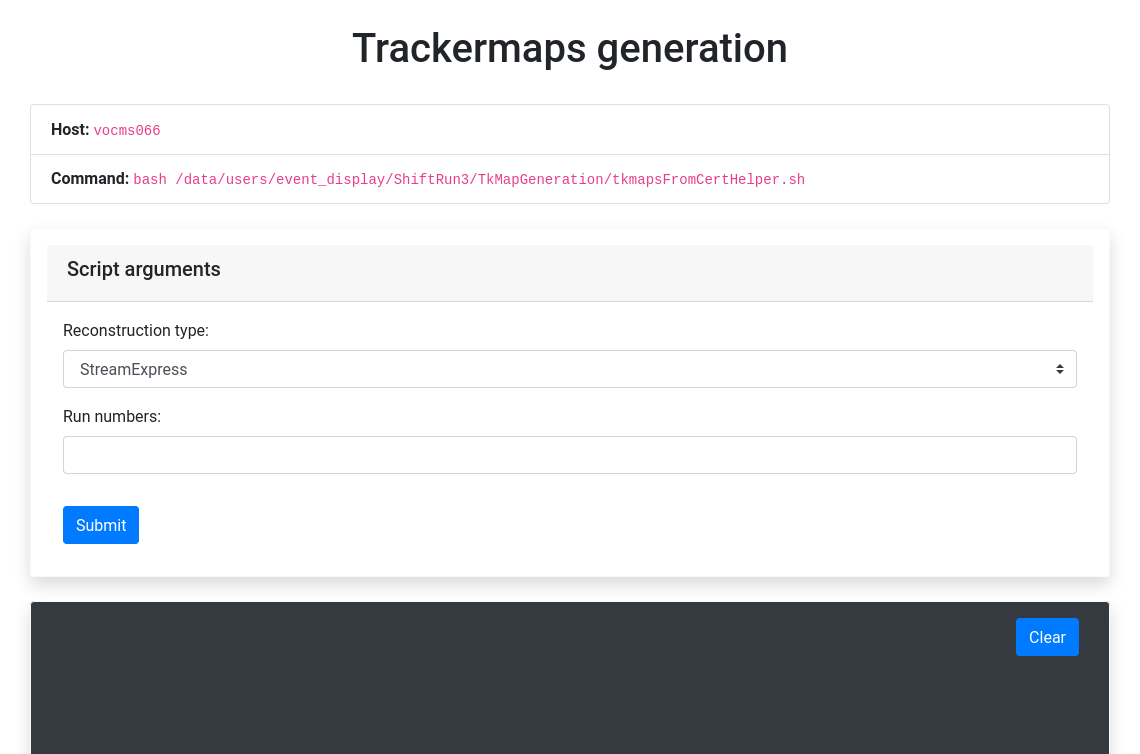
Tracker Maps Generation
This script accepts the following arguments:
The type (i.e. StreamExpress, ZeroBias, StreamExpressCosmics or Cosmics)
A Run number list (either comma or space separated values) and
Once that is done, pressing the Submit button will start the process. The Shifter or Shift Leader can follow the process in real time by observing the logs of the generating script.
Reference Runs
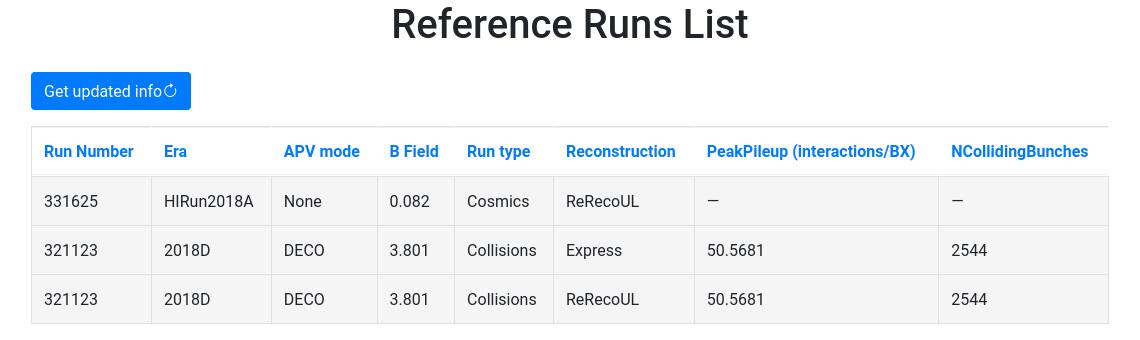
This page lists all the run reconstructions which serve as reference for certifying new ones.
Shifters can just display the list of Reference runs.
Shift Leader-only features
In addition to listing the reference runs, the Shift Leader can also permanently delete a reference run that was added by mistake or promote an already certified one by using the run number and type of the run.
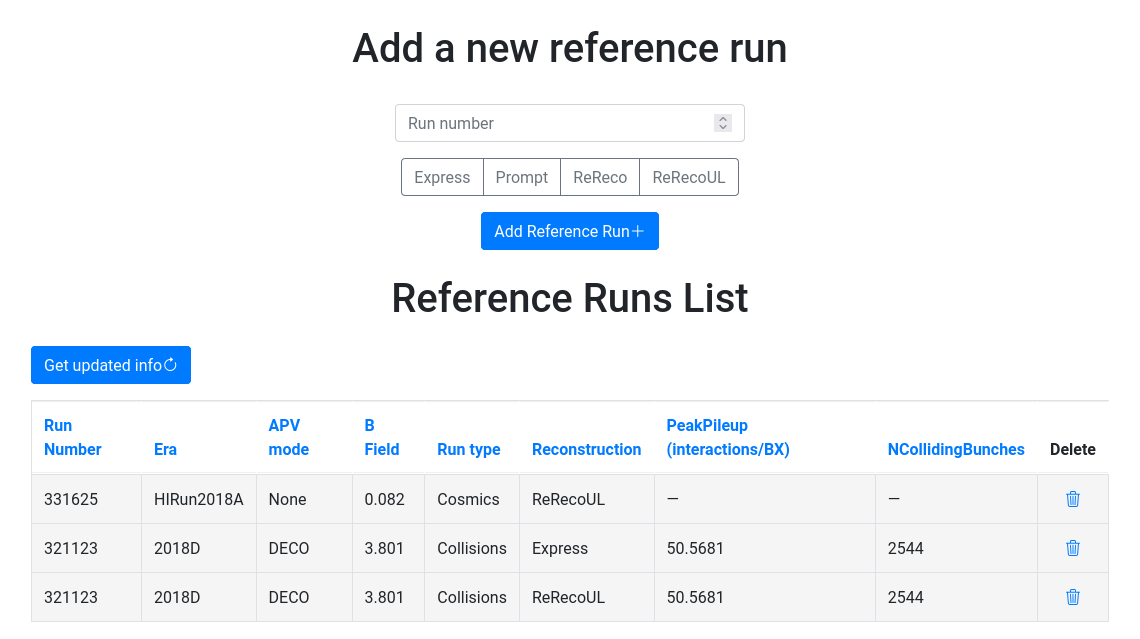
Since a reference run reconstruction must have been certified first, adding a run reconstruction that has not been certified yet will prompt the user to certify the run first.
Note
To promote an existing one to reference, you can also use the Shift Leader View.
Warning
A certification without a reference run reconstruction is no longer valid. Therefore, deleting a reference run will also delete all the certifications that refer to that specific reference run.
Shift Leader
Once a shift leader logs in via CERN SSO, the website automatically
detects the shift leader status by the e-groups the user is associated
with. In particular, the current shift leader should always be
automatically assigned to the e-group cms-tracker-offline-shiftleader
(see also Privileges from e-groups).
The user can ensure he has shift leader rights by checking if an Admin Settings tab appears in the navigation bar.
Apart from that the ShiftLeader has access to all the pages/tiles, including the ones used by Shifters.
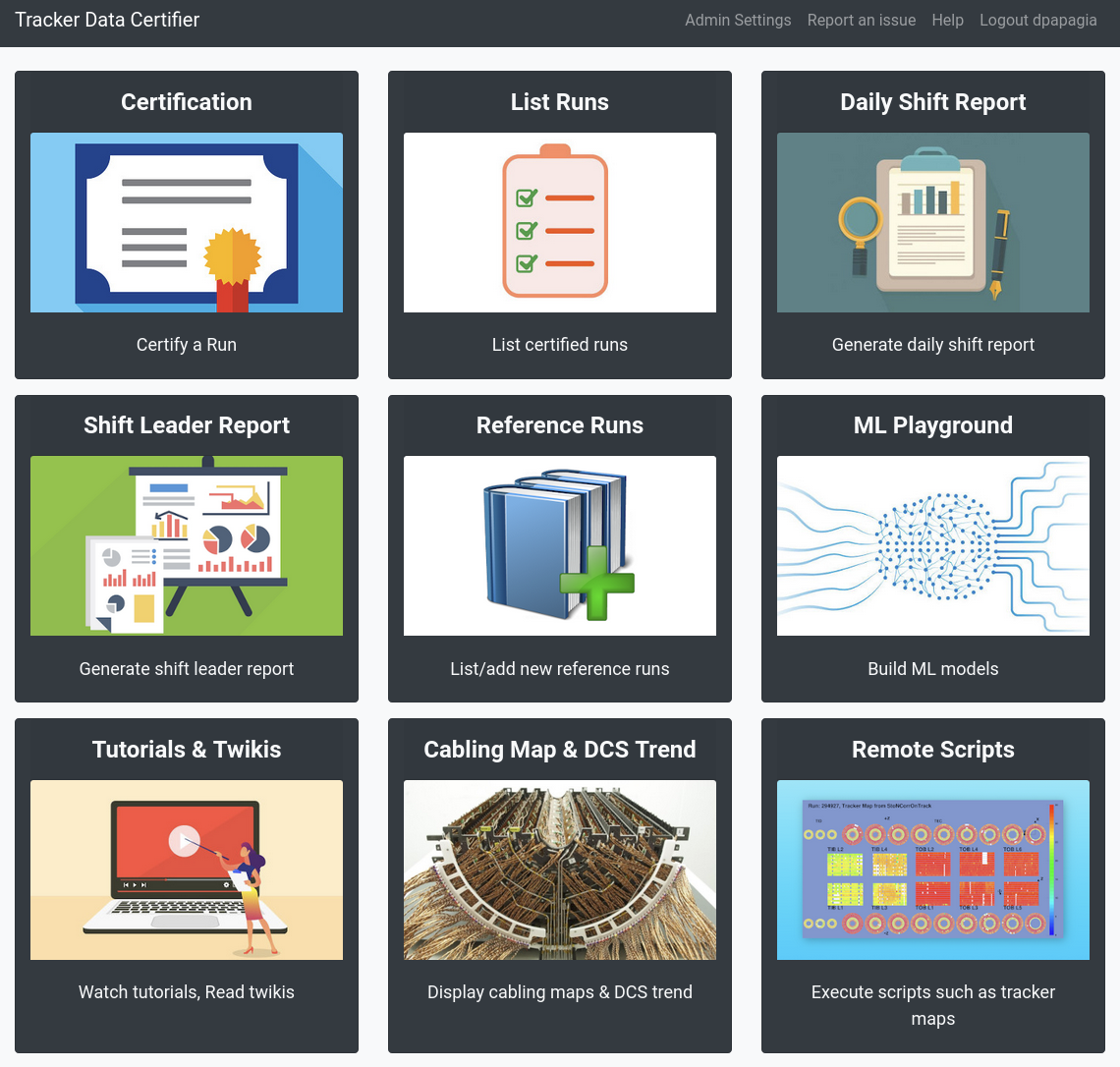
Shift Leader View
In the Shift Leader View, a Shift Leader receives information about all the certified runs for the current week. The page consists of multiple tools, which facilitate the Shift Leader in creating weekly shift leader reports. This page can be accessed through the Shift Leader Report tile button.

Filter
At the top of the page, the shift leader can filter the certified runs by his needs. If no filters were specified, then the current week is automatically selected.

The runs can be filtered by time, run number, run type, problem categories or specific shifters. When clicking the “Filter” button, the whole shift leader page gets updated according to the specified criteria.
Certified Runs tab
In the “Certified Runs” tab a tabular list of all the certified runs for the current week (or specified filter criteria) is shown. The shift leader has the right to edit the certifications of the shifters, delete them entirely or promote a Run to reference. It is essential to keep the list of certified runs correct in order to generate accurate shift leader reports.

Run Registry Comparison tab
In the “Run Registry Comparison” tab, the shifter can verify that the runs in the Certification helper match with the entries in the Run Registry. If any runs differ, they will be listed in this tab. A shift leader can then edit the runs himself or tell the shifter to update them accordingly.

Overview tab
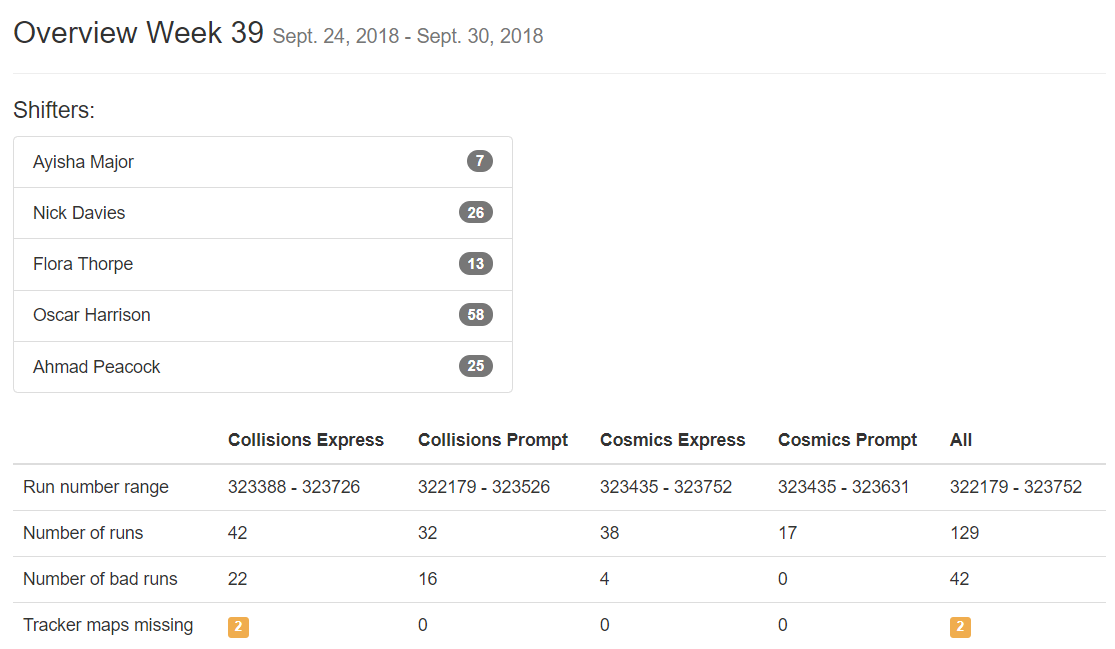
In the “Overview” tab a quick overview of the certified runs can be seen. It also consists of the list of shifters for that week.
Delete Certifications
If a run gets deleted by shift leader it can still be restored in the “Deleted Certifications” tab. If the shift leader wishes he can also irrevocably delete the certification of the run there.
Summary tab
In the “Summary” tab the shift leader can generate the same kind of summary report that the shifters submit to the ELOG. It is just a textual version of all the certifications.
Shift Leader Report tab
The most useful tab for shift leaders is the “Shift leader Report” tab. It automatically generates slides for the weekly shift leader report.
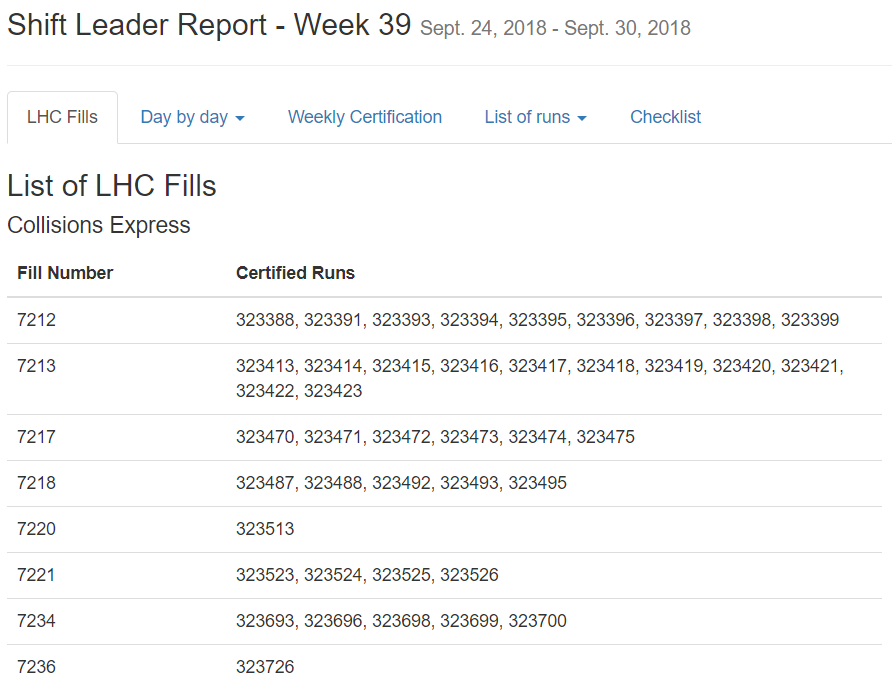
List of LHC Fills
This page lists all the LHC fills that were part in a certification that week. The LHC fill number is taken from the Run Registry via the resthub API.
Weekly Certification
This tab generates the slide called “Weekly certification”. It sums up the number of certified runs for each type and the corresponding integrated luminosity.

Day by Day
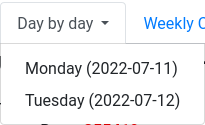
The “Day by day” notes give a quick overview for each day of the week.
List of runs
This page list all the run numbers of runs certified that were certified that week, grouped by reconstruction type and day. The run numbers are colored green if the run was certified “Good” and red for “Bad”.

Generate Presentation
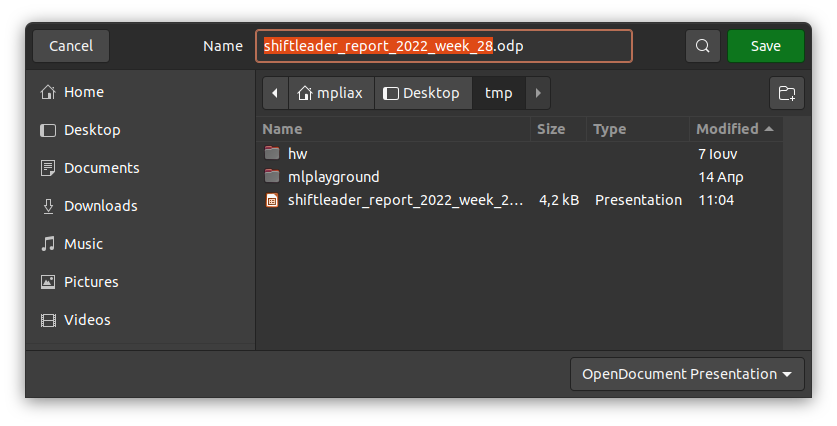
An OpenDocumentPresentation (.odp) can also be automatically generated for the currently selected week, by clicking the Generate Presentation button:

Once the presentation file is ready, you will be prompted to download it through your browser. E.g. if you’re using Firefox:
Note
This procedure might take a long time to complete, so grab some popcorn first!